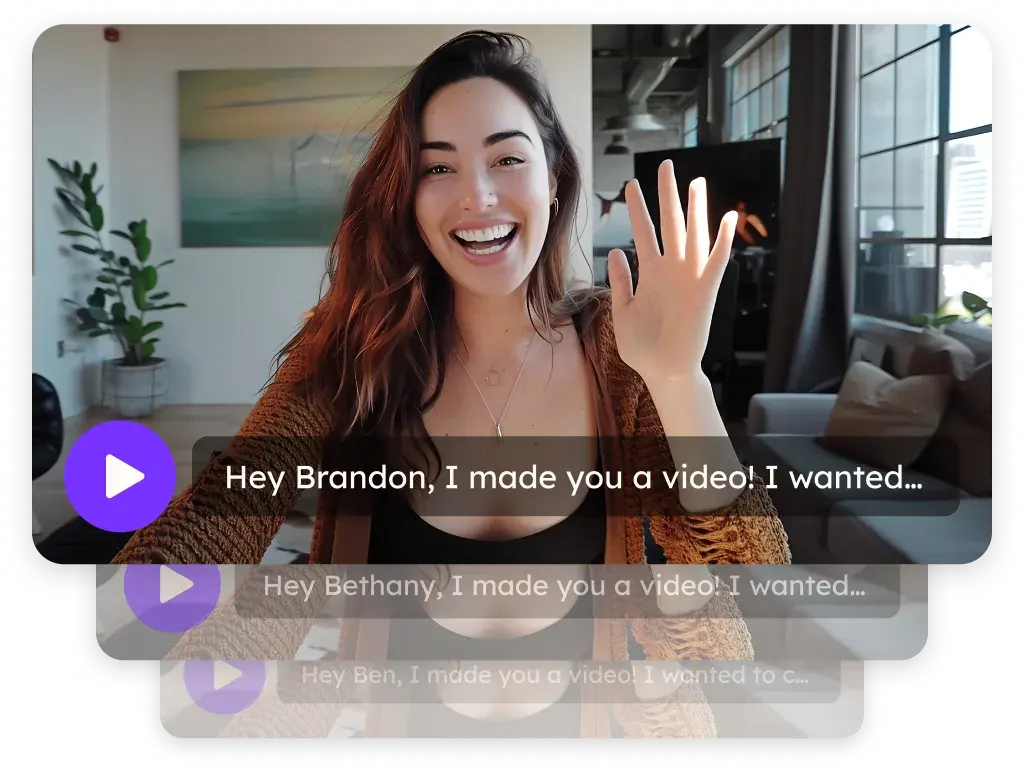
Sendspark Chrome extension for screen and camera recording
The Sendspark Chrome extension is the screen and camera recorder behind Sendspark's instant integrations. Install it and a Sendspark button appears inside Gmail, LinkedIn, HubSpot, Outreach, Close, Salesforce, Intercom, Zendesk, ZoomInfo, Saleshandy and Bridger, so you can record and insert a video without leaving the page. Sendspark is an AI personalized video platform for B2B sales and marketing teams.
 SOC 2 Type II
- Read reviews on G2


Sendspark and Chrome extension at a glance
- Integration type
- Browser recorder that powers instant integrations
- How data moves
- Recordings save to your Sendspark library; inside supported tools the extension inserts the video's share link or GIF preview into your draft. It doesn't sync contact data.
- What you need
- Google Chrome, plus camera and microphone permission for the extension
- Setup guides
- On Chrome extension's side
- Sendspark on the Chrome Web Store
Recording a quick video takes longer than writing the email
When recording means opening another app, exporting a file, uploading it and copying a link back, a two-minute walkthrough turns into a chore. So it gets skipped, and buyers get one more wall of text they won't read.
How to use Sendspark with Chrome extension
- 1
Install and pin the extension
Add Sendspark from the Chrome Web Store, then click the puzzle piece in the top right of Chrome and click the pin next to Sendspark so its icon stays in your toolbar.
- 2
Allow camera and microphone
Paste the extension's settings link from the help article into the address bar (paste it, don't click it) and set both Camera and Microphone to Allow.
- 3
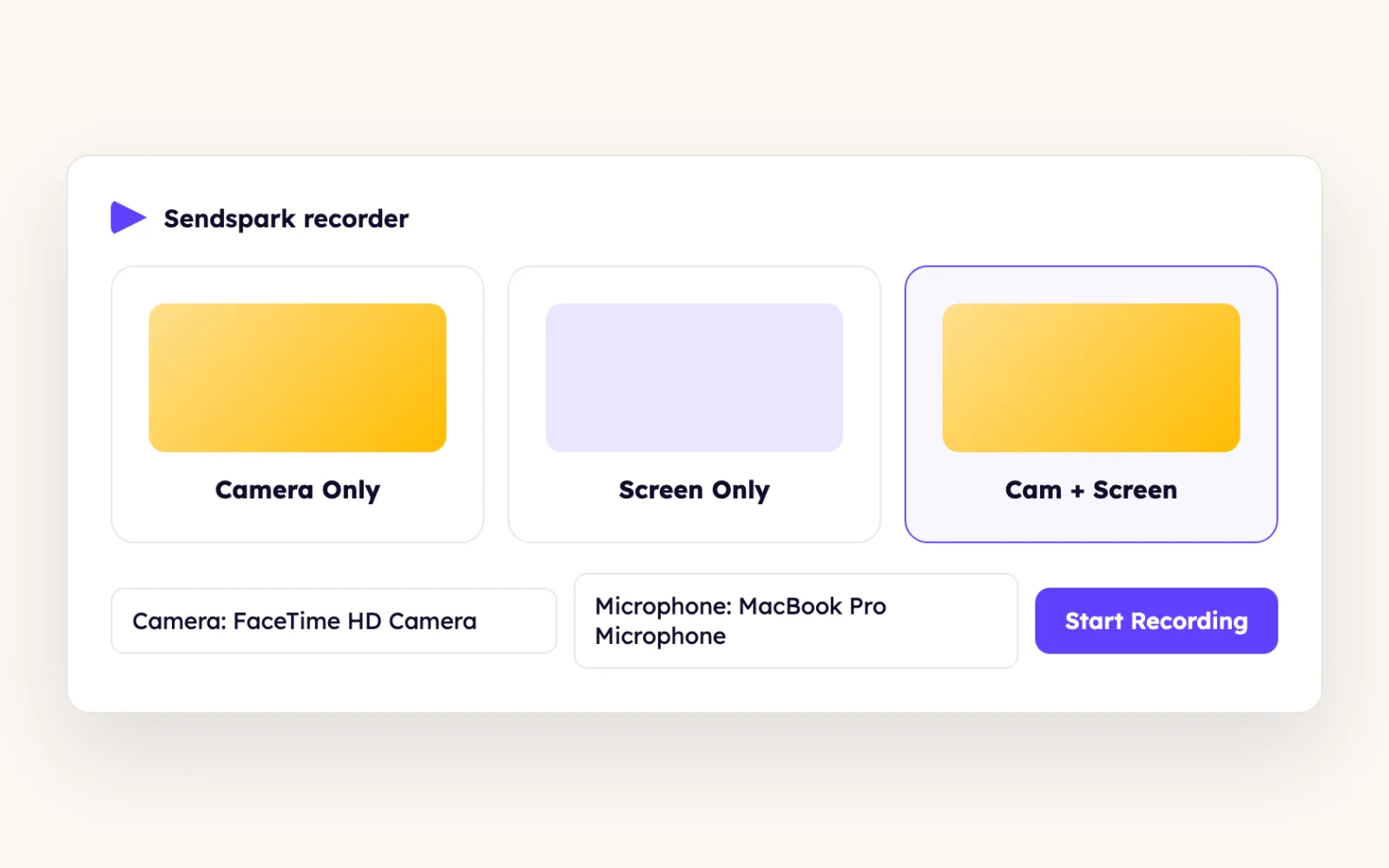
Pick a recording option
Click the Sendspark icon and choose Camera Only, Screen Only or Cam + Screen, which puts your camera bubble over your screen.
- 4
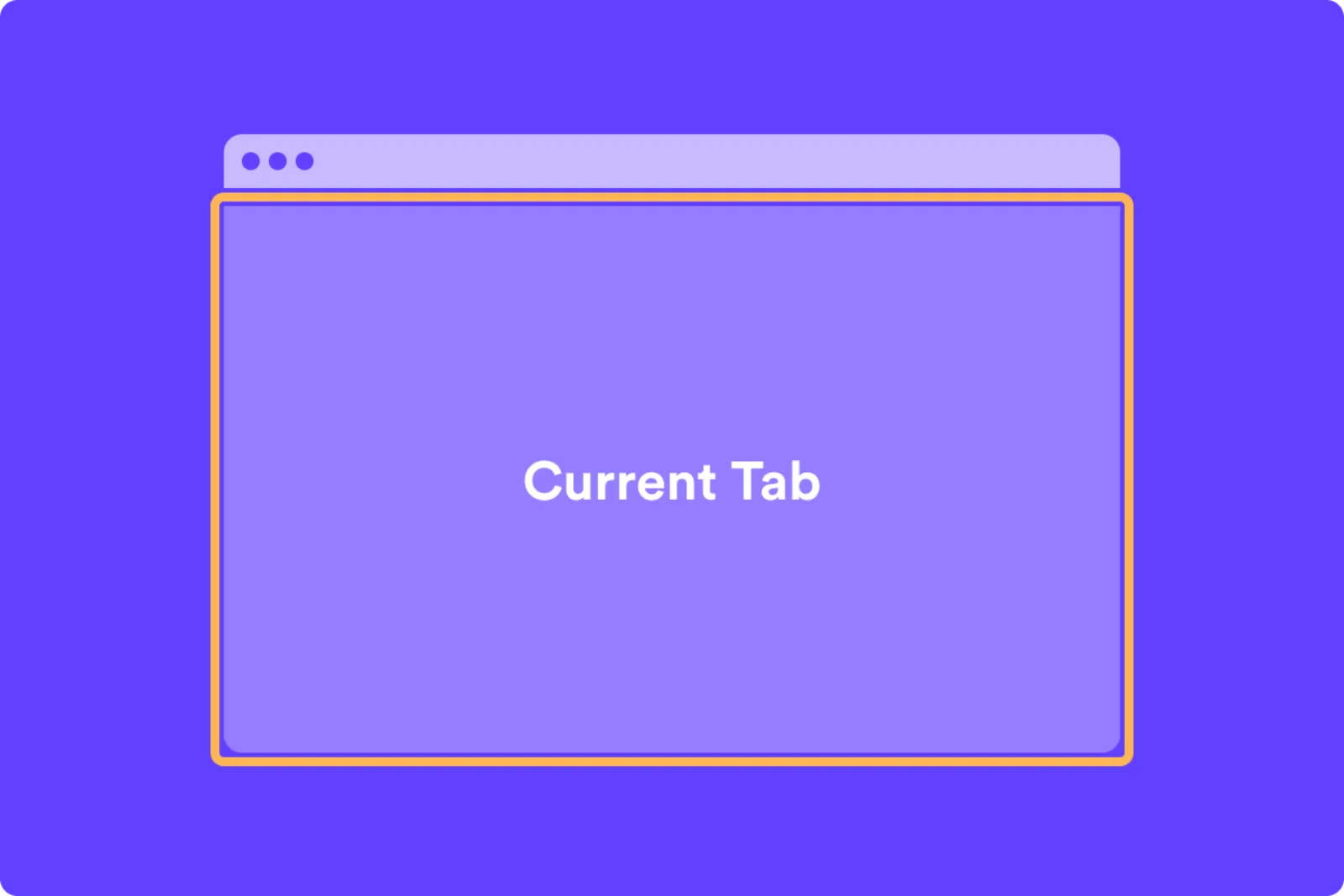
Choose what to share
For screen recordings, Chrome asks for a Chrome Tab (only what's below the address bar), a Window or your Entire Screen. Camera Only skips this step.
- 5
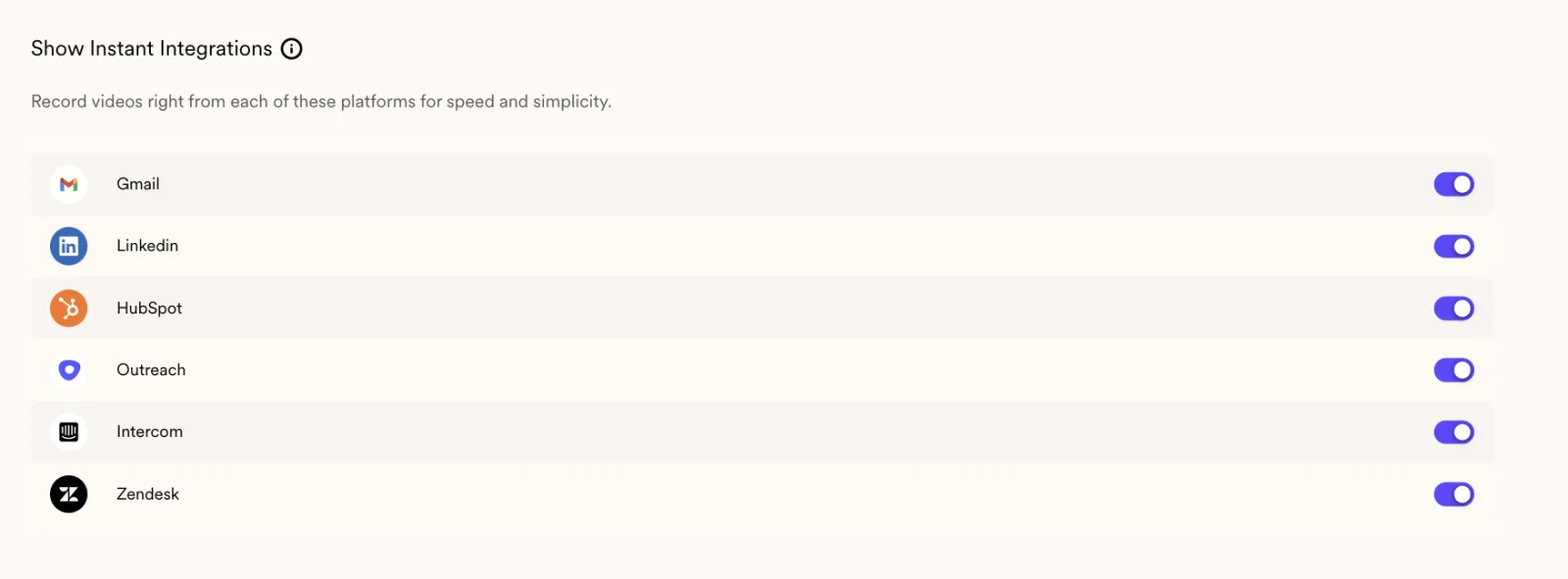
Record inside the tools you use
Open a compose window in Gmail, LinkedIn, HubSpot, Intercom, Zendesk or another supported tool and click the Sendspark icon. You can switch any of these off for yourself in Sendspark's integration settings.
What teams do with Sendspark and Chrome extension
Walk a prospect through their PDF proposal
Chrome blocks extensions from local files by default, which hides your camera bubble over a PDF. Right-click the Sendspark icon, open Manage Extension, turn on Allow access to file URLs, refresh the PDF tab and record.
Read the guideKeep your face on screen while you click through tabs
Chrome Tab only captures the selected tab, so switching tabs drops the footage and leaves just your voice. Record with Window or Entire Screen for multi-tab demos, and use the Sendspark desktop app for apps outside Chrome.
Read the guideReply with video from the tool you're already in
Instant integrations turn on the moment the extension is installed: record, preview, add a template or trim, then insert and send from the compose window. Toggling one off only disables it for you, not your workspace.
Read the guideWhat Chrome extension data personalizes each video
- From the preview you can add a template (page text, call-to-action buttons and an embedded calendar), trim, or combine another video before inserting.
- Recorder extras include camera spotlight, on-screen drawing and a branded recording toolbar; background blur, virtual backgrounds and touch-up apply while recording.
- Edit Page / Thumbnail opens the video in Sendspark to change the landing page or thumbnail; you then paste the link instead of inserting it.
- Screen capture goes up to 1080p.
Where you see who watched from Chrome extension
Every recording gets Sendspark's per-video analytics: who viewed, how much they watched, CTA clicks and likes, with view notifications.
Explore Video AnalyticsSendspark and Chrome extension: frequently asked questions
Does Sendspark have a Chrome extension?
Yes. The Sendspark Chrome extension records your camera, screen or both, and adds a Sendspark button to supported tools such as Gmail, LinkedIn, HubSpot, Intercom and Zendesk.
Why won't the Sendspark extension record?
Google blocks screen recorders on some pages: the Chrome Web Store, an empty new tab and chrome://extensions. Open a normal webpage with content and try again; if Record does nothing, check camera and microphone permissions.
Why is my face missing from a recording?
You likely recorded with Chrome Tab and switched tabs or apps. Use Window or Entire Screen to keep recording across tabs.
Can the Chrome extension record desktop apps?
No, it records inside Chrome. Use the Sendspark desktop app for Mac or Windows to record other applications.
Can I record over a PDF?
Yes. Turn on Allow access to file URLs in the extension's Manage Extension settings, refresh the PDF tab and record.
Updated
 GmailInstant integration (Insert Video) and Agentic Workflows connectionExplore Gmail
 LinkedInInstant integration (Chrome extension) plus LinkedIn-profile video backgroundsExplore LinkedIn
 HubSpotInstant integration, HubSpot app (workflow actions and CRM tracking), share snippet, Agentic Workflows connection and calendar embedExplore HubSpot
Make your next outreach personal.
Record one video and let Sendspark do the rest.