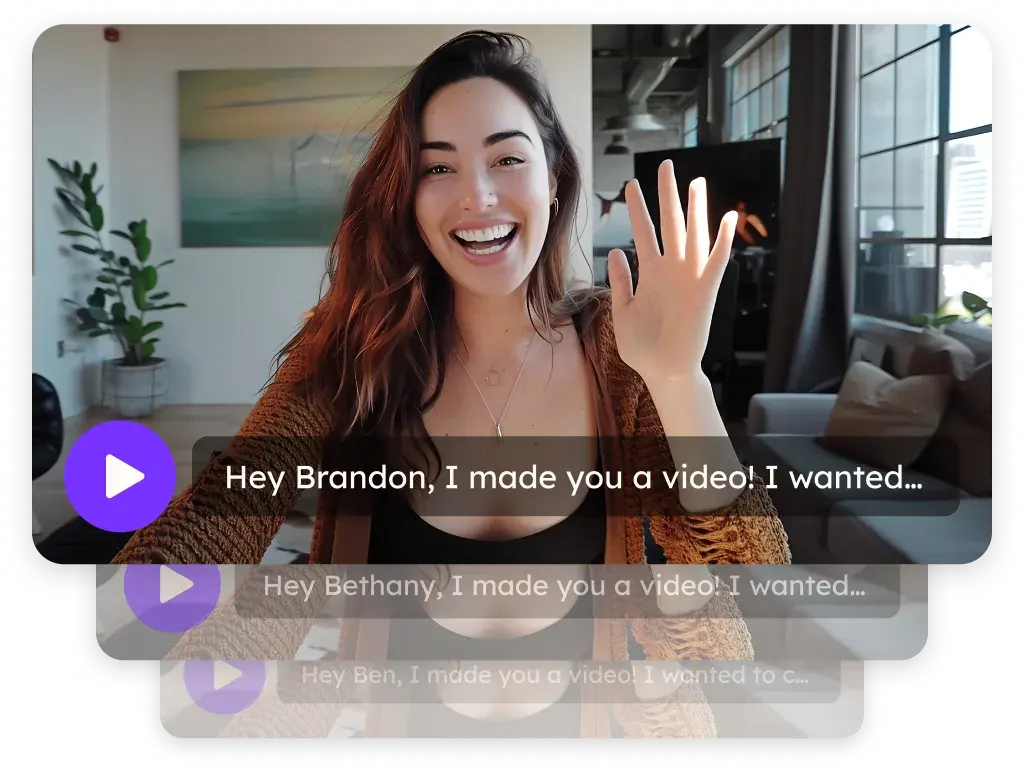
Sendspark Clay integration for AI personalized videos
The Sendspark Clay integration turns every row in a Clay table into an AI personalized video, then hands the video link, embed link and GIF thumbnail back to Clay for the rest of your workflow. Sendspark is an AI personalized video platform for B2B sales and marketing teams. Clay users run it as an enrichment called Add Prospect to Video Campaign, then push the results into Smartlead, Instantly, lemlist or La Growth Machine.
 SOC 2 Type II
- Read reviews on G2


Sendspark and Clay at a glance
- Integration type
- Import source (Clay enrichment)
- How data moves
- Contacts go from your Clay table into a Sendspark Dynamic Video campaign; Sendspark returns the Video Link, Embed Link and Thumbnail URL to Clay. Views and clicks stay in Sendspark analytics.
- Plan
- Growth and above
- What you need
- A Clay table, a Sendspark Dynamic Video campaign, and your Sendspark API key and API secret (Settings, API credentials).
- Setup guides
- On Clay's side
- Sendspark integration in Clay University
Your Clay table is full of rich data, but your outreach still reads like a template
You've enriched every lead with a name, company and website, then you drop it all into the same plain email everyone else sends. Recording a video for each row isn't realistic, so the personal touch gets cut first.
How to use Sendspark with Clay
- 1
Build your Clay table
Create a table in Clay with the contacts you want videos for. Columns like firstName, email, company, jobTitle and a website URL give you the most to personalize with.
- 2
Create a Dynamic Video campaign in Sendspark
In Sendspark, open Dynamic Videos and create a campaign. Record once and say "watermelon" wherever the viewer's first name should go, then set up the landing page text, CTA and calendar.
- 3
Add the Sendspark enrichment in Clay
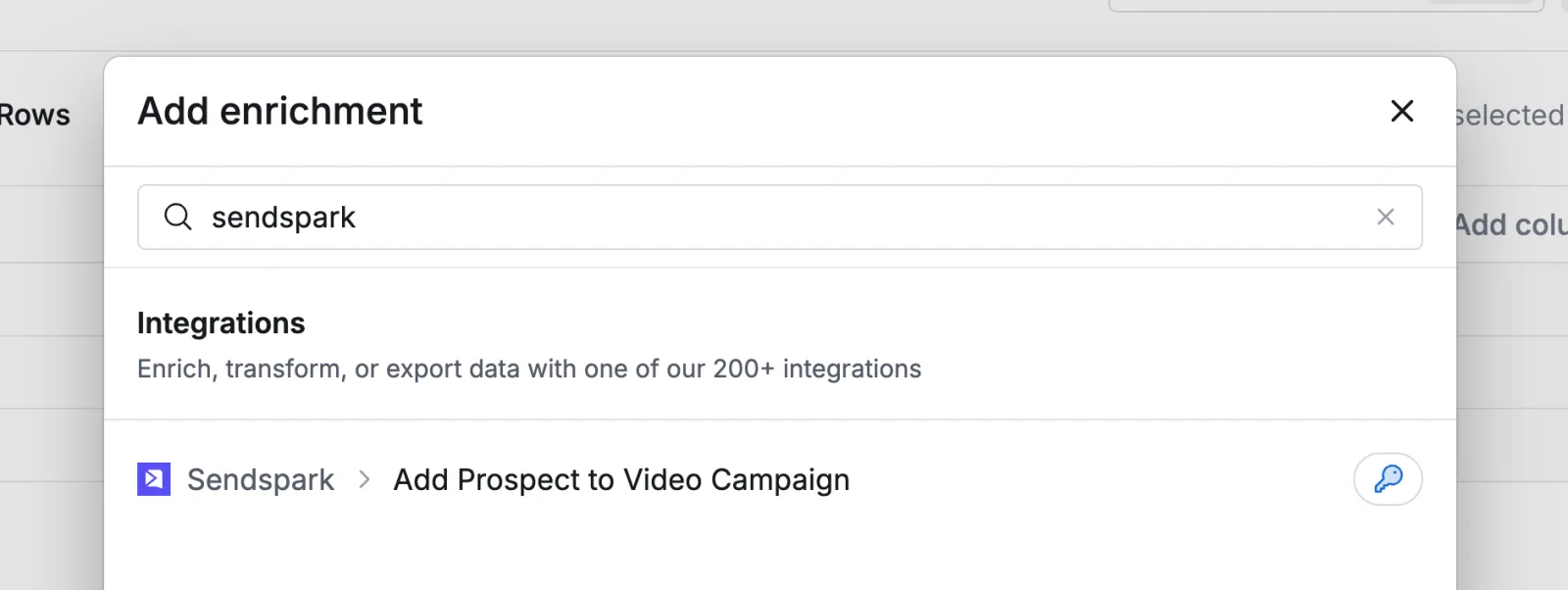
In Clay, click Add enrichment, search for Sendspark and pick Add Prospect to Video Campaign.
- 4
Authenticate and map your fields
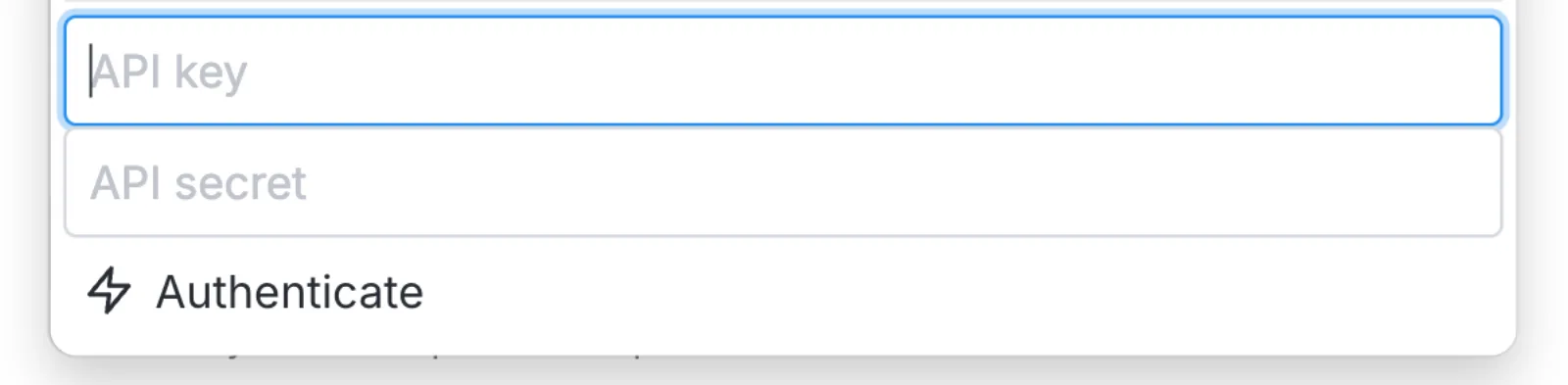
Paste your API key and API secret from Sendspark's API credentials page, choose your Workspace ID and Dynamic Campaign ID from the dropdowns, then map your Clay columns to the contact fields.
- 5
Run the column and collect the links
Open the Save dropdown and run the column. When each row shows a Success status, click the cell to pull out the Video Link, Embed Link and Thumbnail URL as new columns.
What teams do with Sendspark and Clay
Clay to Smartlead: a video in every cold email
Paste the Smartlead (Image URL) snippet from Share Campaign into your Smartlead email, then hyperlink it with the Smartlead (Video URL) snippet so the preview is clickable. A Smartlead enrichment in Clay enrolls each lead once its Sendspark cell shows Success.
Read the guideClay to Instantly: enroll leads the moment their video is ready
Copy the Instantly snippet from Share Campaign and paste it into your Instantly email in Code View. Then add Clay's Add Lead to Campaign enrichment for Instantly with your Campaign ID and the contact's email.
Read the guideClay to La Growth Machine: video in LinkedIn messages
Make a column from the Video Link, map it to La Growth Machine's Custom Attribute 1 with the Clay enrichment, and use {{customAttribute1}} in your connection request or message.
Read the guideClay to lemlist: video emails that wait for the video
Paste the lemlist snippet into your lemlist template through code view, add a video link column in Clay to confirm generation, and set the lemlist enrichment to run only after the video exists.
Read the guideWhat Clay data personalizes each video
- The first name you map replaces the word "watermelon" in the AI voice, so your recording says each prospect's name in your voice.
- Company, job title and website fields fill matching variables on the video and landing page; a website URL can become the scrolling background behind your camera bubble.
- Clay gets back the Video Link (the share page), the Embed Link (for a web page) and the Thumbnail URL (the GIF preview), which you can combine for an email embed with a play button.
- Snippets for Smartlead, Instantly and lemlist match each video to the recipient by email address, so the email in Clay must match the one in your sending tool.
Where you see who watched from Clay
Views, watch time, CTA clicks and likes show in Sendspark's per-video analytics and export to CSV. Clay receives the links, not the viewing data.
Explore Video AnalyticsSendspark and Clay: frequently asked questions
Does Sendspark integrate with Clay?
Yes. Sendspark has a Clay enrichment called Add Prospect to Video Campaign. It sends each row to a Sendspark Dynamic Video campaign and returns a personalized video for that contact.
What do I need to connect Clay to Sendspark?
Your Sendspark API key and API secret, both on the API credentials page in Sendspark, plus a Dynamic Video campaign to use as the template. You pick the workspace and campaign from dropdowns in Clay.
Which fields does Sendspark send back to Clay?
Click a Success cell to see them all. The ones you'll use most are the Video Link, the Embed Link and the Thumbnail URL for the GIF preview.
Can I test before running the whole table?
Yes. Add yourself as a test contact in the campaign's Contacts section to preview the AI video, then run the Clay column once you're happy with it.
Can Clay send RB2B website visitors into Sendspark?
Yes. Our LinkedIn tutorial uses RB2B's webhook to add website visitors to a Clay table before the Sendspark enrichment runs. If you'd rather skip Clay, RB2B can also trigger a Sendspark Agentic Workflow directly.
Updated


Make your next outreach personal.
Record one video and let Sendspark do the rest.