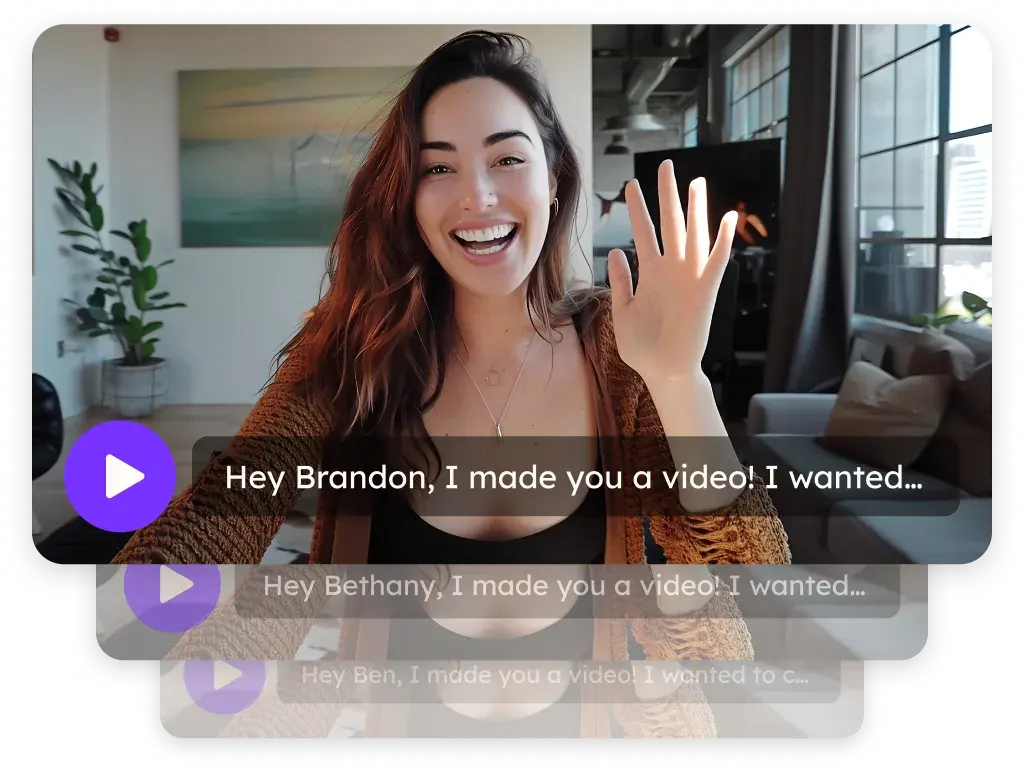
Sendspark HubSpot integration for personalized video
Sendspark works inside HubSpot four ways: a Sendspark button in the HubSpot email composer, the Sendspark app for HubSpot workflows, share snippets for Sales Hub templates and sequences, and video events written to each contact's timeline. Sales and marketing teams use it to send personalized videos to HubSpot contacts and act on who watched. Sendspark is an AI personalized video platform for B2B sales and marketing teams.
 SOC 2 Type II
- Read reviews on G2

Sendspark and HubSpot at a glance
- Integration type
- Instant integration, HubSpot app (workflow actions and CRM tracking), share snippet, Agentic Workflows connection and calendar embed
- How data moves
- Contacts come in from HubSpot lists and workflow triggers; Video Visited, Played, Watched, Liked and CTA Clicked events are written back to the contact's HubSpot timeline (CRM tracking).
- Plan
- The basic HubSpot integration is on every plan. Agentic and Automated Workflows, the API and webhooks are on Growth and above.
- What you need
- The Sendspark Chrome extension for the composer button; the Sendspark app connected from Settings, Integrations; a HubSpot user with CRM objects and Automation permissions to build workflows; your Sendspark API key and secret for workflow actions.
- Setup guides
- On HubSpot's side
- Sendspark on the HubSpot Marketplace
Your reps can't tell which contacts actually watched
Video links go out from HubSpot, but the view data lives somewhere else, so follow-up runs on guesswork instead of intent. And because recording a personal video for each contact takes time, most reps fall back to the same template everyone else sends.
How to use Sendspark with HubSpot
- 1
Record from the HubSpot email composer
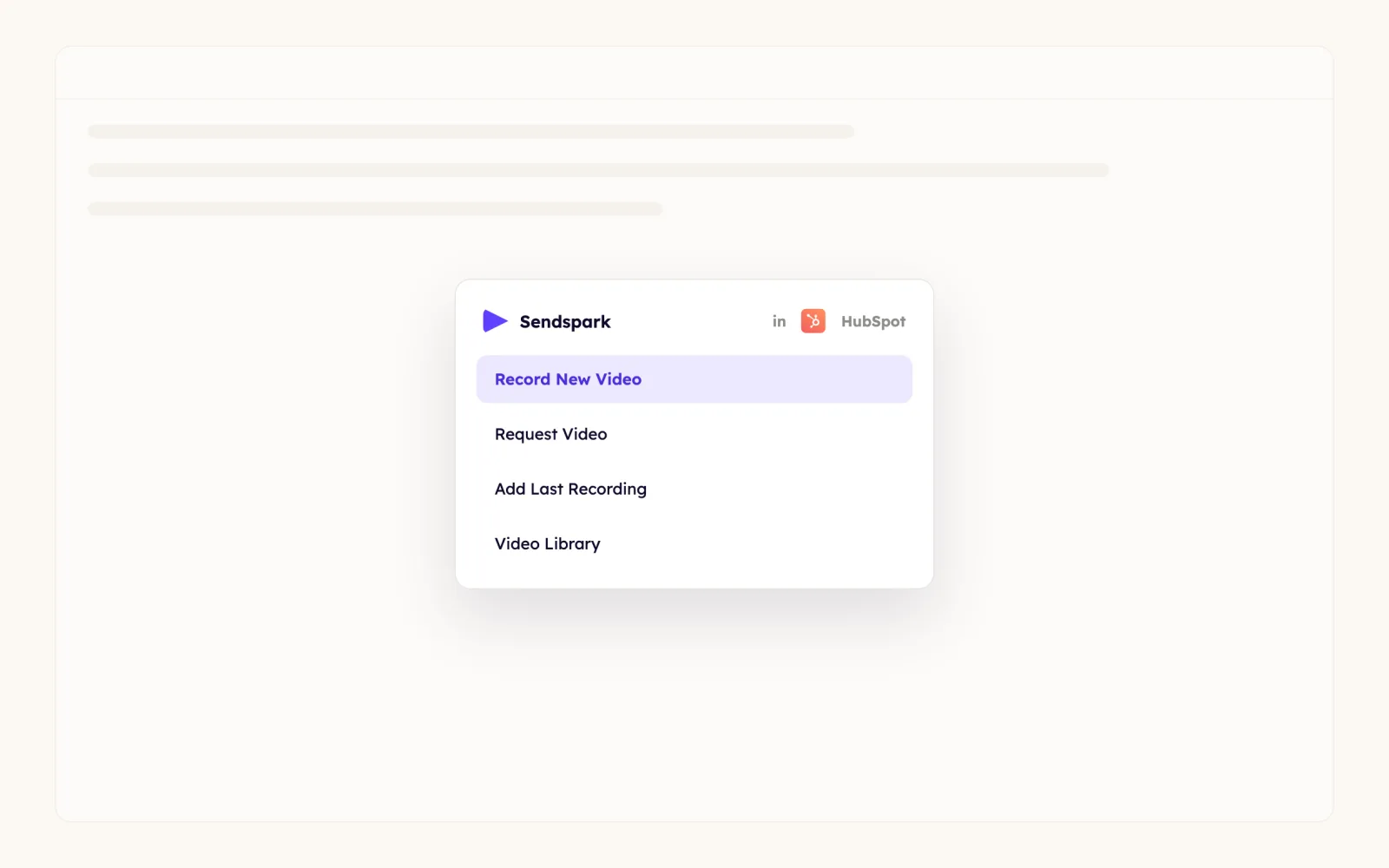
With the Sendspark Chrome extension installed, open a new email in HubSpot and click the Sendspark icon next to the native options. Choose Record New Video, or use Request Video, Send Calendar, Add Last Recording or Video Library, then click the extension icon in the browser toolbar to finish recording.
- 2
Connect the Sendspark app for HubSpot
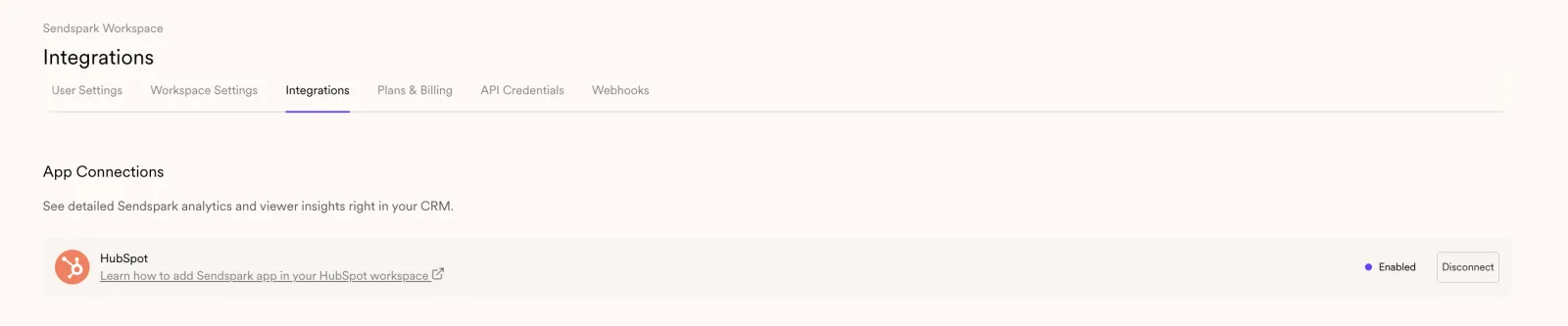
In Sendspark, go to Settings, Integrations, and click Connect on the HubSpot app connection under App Connections. Once it shows Enabled, Sendspark appears under Connected Apps in HubSpot workflows.
- 3
Share with a HubSpot option so tracking is attached
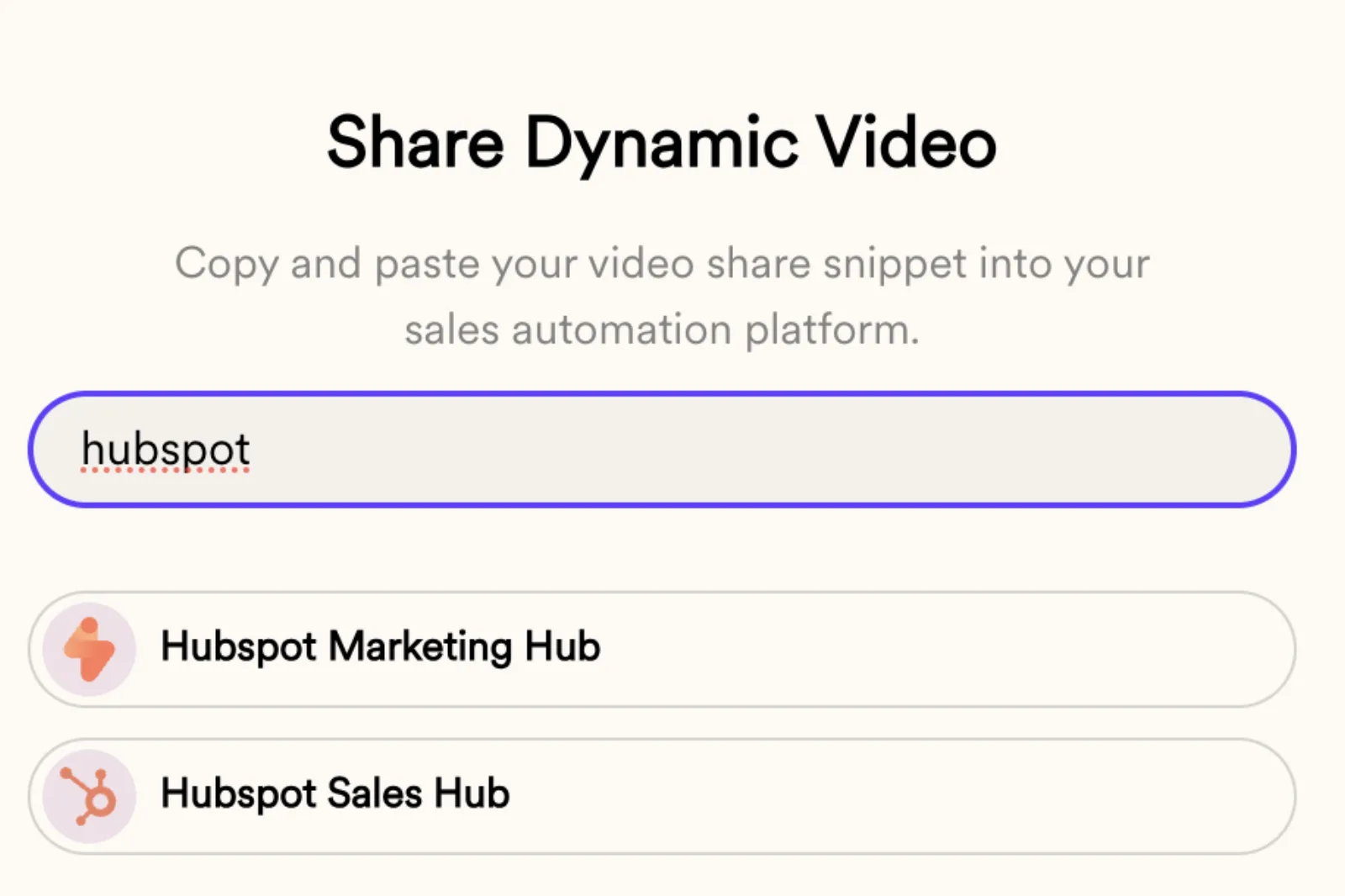
Send videos with one of the HubSpot share options, such as Share with Personalization, HubSpot Sales Hub, then paste the snippet into a HubSpot template. A plain Copy Link or Copy GIF carries no tracking code, so those views won't reach HubSpot.
- 4
Turn on Sendspark events in the contact timeline
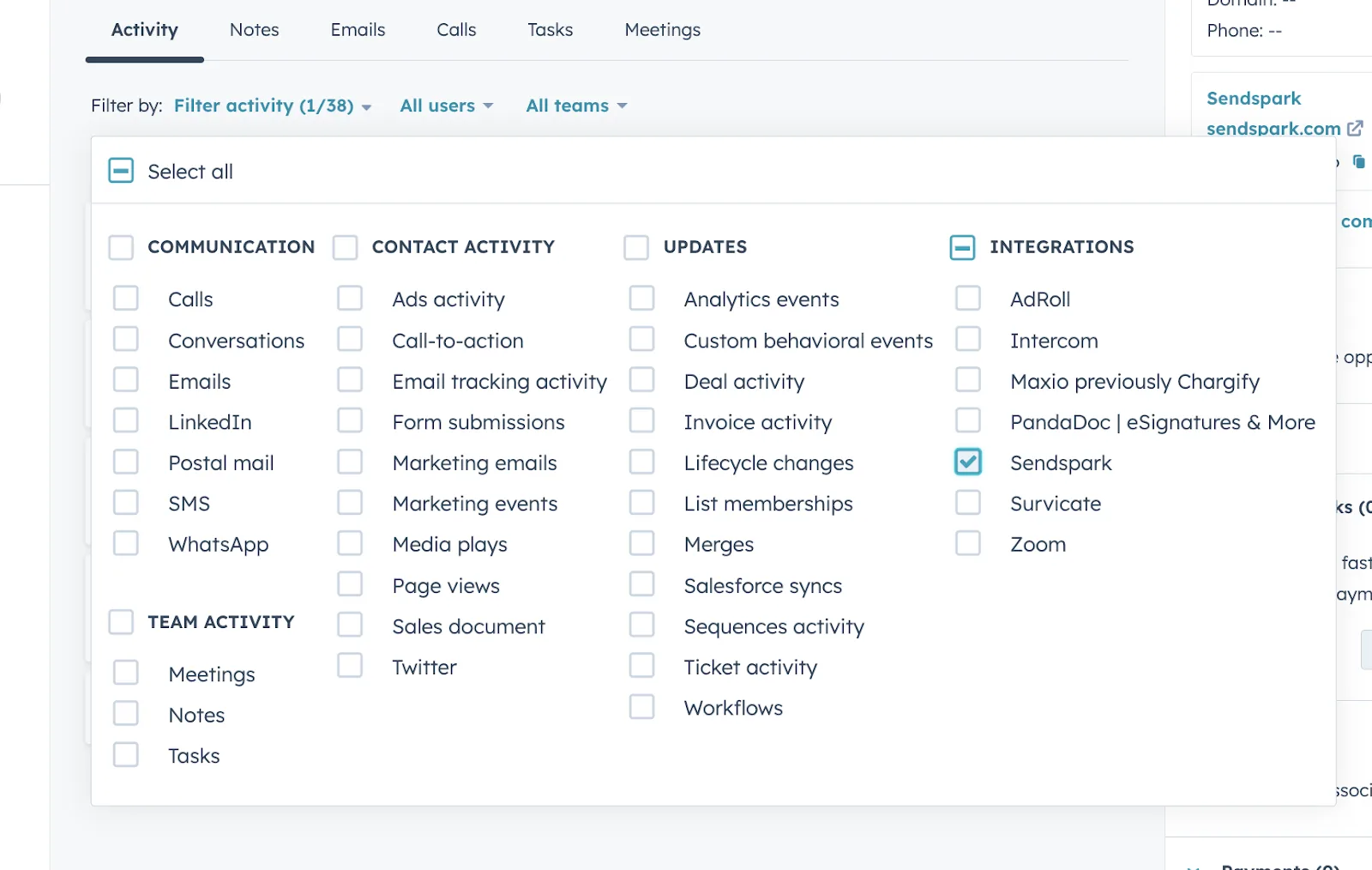
Sendspark timeline events aren't shown by default. On a contact record, click Filter activity and check Sendspark under Integrations to see each video event.
What teams do with Sendspark and HubSpot
Send a personalized video the moment a meeting is booked
In Sendspark Agentic Workflows, trigger on HubSpot's New Meeting Created event, add a HubSpot Find Contact step using Guest Emails, then a Sendspark Create dynamic video step. Send the result through Gmail or Outreach, and filter by meeting title if only some meetings should trigger it.
Read the guideGenerate a video from any HubSpot trigger and enroll the contact in a sequence
In a HubSpot workflow, add the Sendspark Create a Video action with your Workspace ID, API key, API secret and Dynamic Video Campaign ID, then an Enroll in a Sequence step. Paste the HubSpot Sales Hub snippet into the sequence email so each contact gets their own video.
Read the guideFollow up with contacts who watched most of your video
Build a HubSpot list of everyone with a Sendspark video event, or a workflow for contacts who watched more than 80% of a video but haven't booked a meeting. The Sendspark properties include watch percentage, video name, creator and dynamic campaign.
Read the guideSend round-robin demos a video from the assigned rep
Use workflow branches to work out which rep owns the demo, run the Sendspark HubSpot app step to create that rep's video, then send the rep's own email with the dynamic video snippet embedded.
Read the guideWhat HubSpot data personalizes each video
- Sales Hub share: put {{first name}}, {{job title}} and {{company name}} in the video page header and message; HubSpot fills them for each recipient and Sendspark shows fallback text when a field is empty.
- Workflow video action: map First Name (not Full Name, for better pronunciation) to Contact Name, Email (required), Company Name, Job Title and Website URL; choose Use email domain as background URL so a background appears even without a website property.
- Free email domains: create a Background URL contact property and a HubSpot workflow that sets it to the prospect's website or your own, then map it when importing HubSpot leads.
- The HubSpot Sales Hub snippet has fewer customization features, like resizing the thumbnail; Copy Thumbnail works in Sales Hub templates, and the Marketing Hub snippet is only for HubSpot's email builder.
- Embed a HubSpot Meetings calendar next to the video: toggle Calendar on, pick HubSpot as the provider and add your meeting link.
Where you see who watched from HubSpot
Sendspark analytics show who viewed, how much they watched, CTA clicks and likes, and Team Insights is on every plan. In HubSpot, the Sendspark app writes Video Visited, Video Played, Video Watched (with the percentage), Video Liked and Video CTA Clicked as timeline events on the contact, and you can use them in lists and workflows.
Explore Video AnalyticsSendspark and HubSpot: frequently asked questions
Does Sendspark integrate with HubSpot?
Yes. You get a Sendspark button in the HubSpot email composer through the Chrome extension, the Sendspark app for HubSpot workflow actions and triggers, share snippets for Sales Hub templates and sequences, HubSpot triggers in Agentic Workflows, and HubSpot Meetings calendar embeds on your video pages.
Which Sendspark plan includes HubSpot?
The basic HubSpot integration is on every plan, including Solo. Agentic and Automated Workflows, the API and webhooks need Growth or above.
Do video views show up on HubSpot contacts?
Yes, once the Sendspark app is connected. Views arrive as Sendspark timeline events on the contact, as long as you shared with a HubSpot share option or sent a dynamic video. Plain Copy Link and Copy GIF shares don't carry tracking.
Why can't I see Sendspark events on a contact's timeline?
They're hidden by default. Click Filter activity on the contact record and select Sendspark.
Why doesn't Sendspark appear in my HubSpot workflow actions?
Connect the HubSpot app from Settings, Integrations in Sendspark first. The HubSpot user building the workflow also needs the CRM objects and Automation permissions, set under Settings, Users & Teams, Edit permissions.
Updated
 HubSpot Marketing HubShare snippet for marketing emails, plus Sendspark app workflow actions and an Agentic Workflows connectionExplore HubSpot Marketing Hub
 SalesforceInstant integration, import source, CRM tracking and share linksExplore Salesforce
 OutreachInstant integration, share snippet, Agentic Workflows connection and calendar embedExplore Outreach
Make your next outreach personal.
Record one video and let Sendspark do the rest.