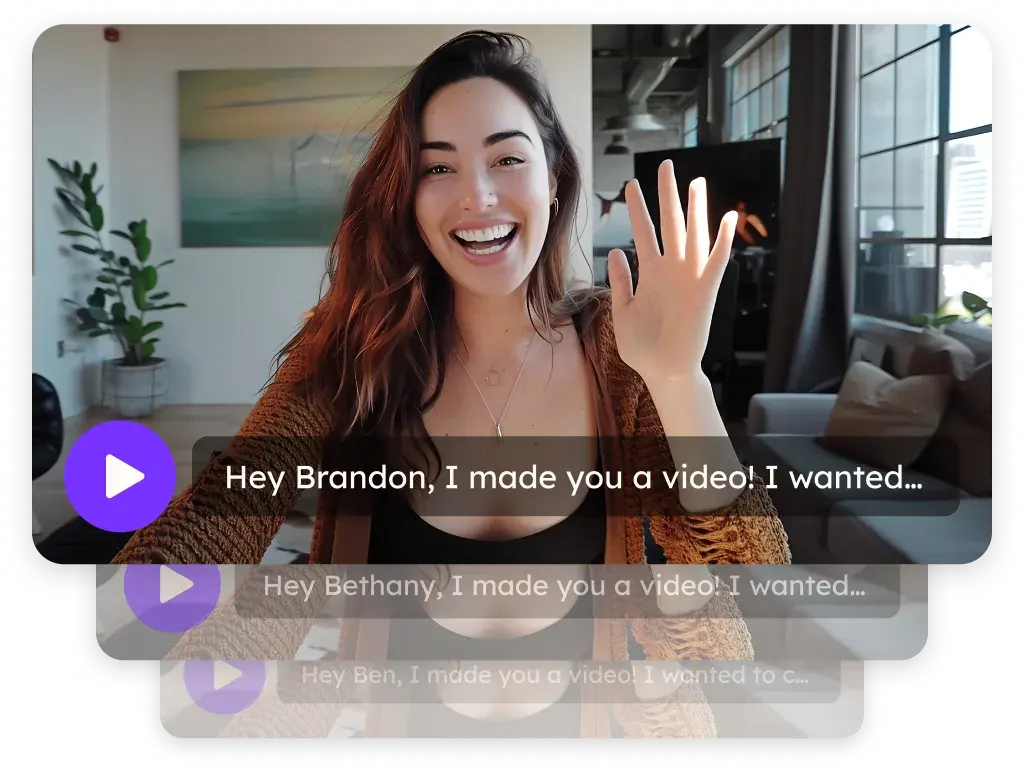
Sendspark Close CRM integration for personalized video
Sendspark adds a Sendspark button to the Close email composer through the Chrome extension, so reps can record and insert a video without leaving Close. For outreach at scale, you paste Sendspark's Close snippet into a Close email template and send it from a workflow. Sendspark is an AI personalized video platform for B2B sales and marketing teams.
 SOC 2 Type II
- Read reviews on G2


Sendspark and Close at a glance
- Integration type
- Instant integration and share snippet
- How data moves
- You record or paste the video into Close emails and templates; views, watch time and clicks are tracked in Sendspark.
- What you need
- The Sendspark Chrome extension in a Chrome browser for the composer button; a Close account with email templates for snippet sends.
- Setup guides
- On Close's side
- Sendspark on Close Integrations
Your follow-ups read like everyone else's
Reps work fast in the inbox, so emails come out short, plain and easy to ignore. Stopping to record, upload and link a video breaks the flow, so it rarely happens.
How to use Sendspark with Close
- 1
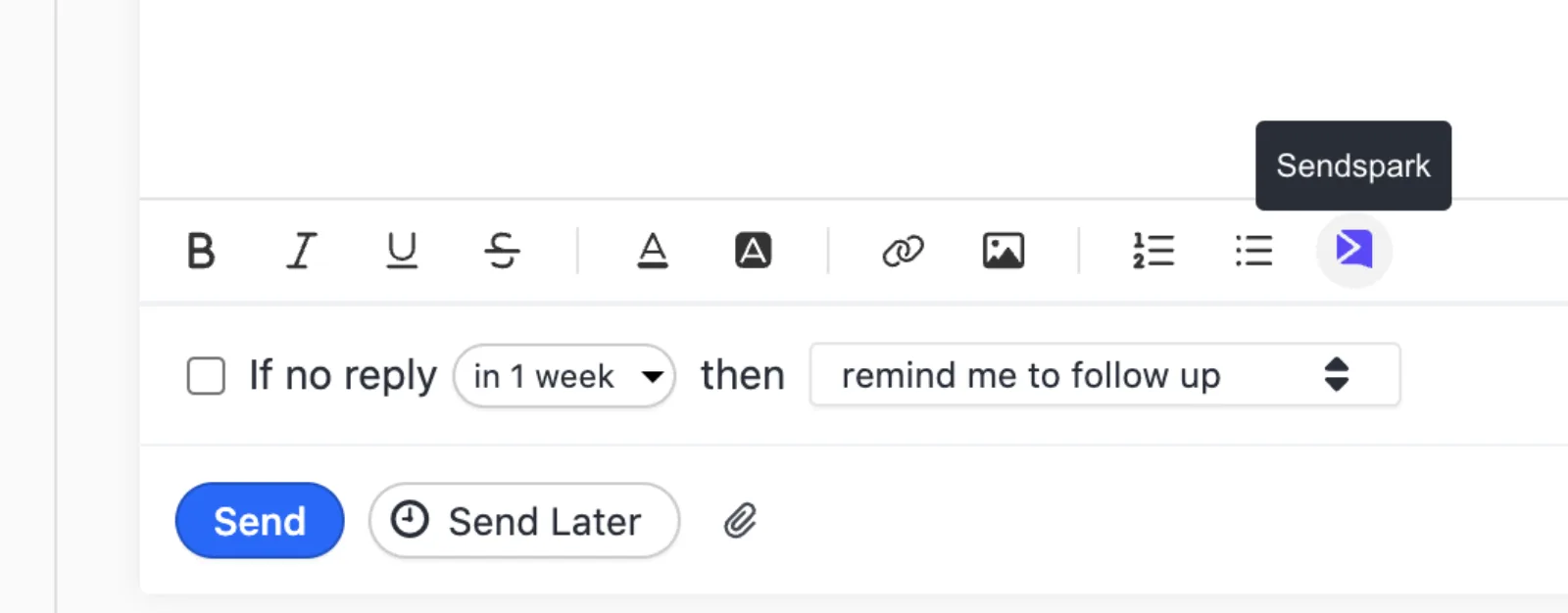
Open a conversation in Close
With the Sendspark Chrome extension installed, start a new conversation or open an existing one. The Sendspark icon appears in the compose toolbar next to Close's own options.
- 2
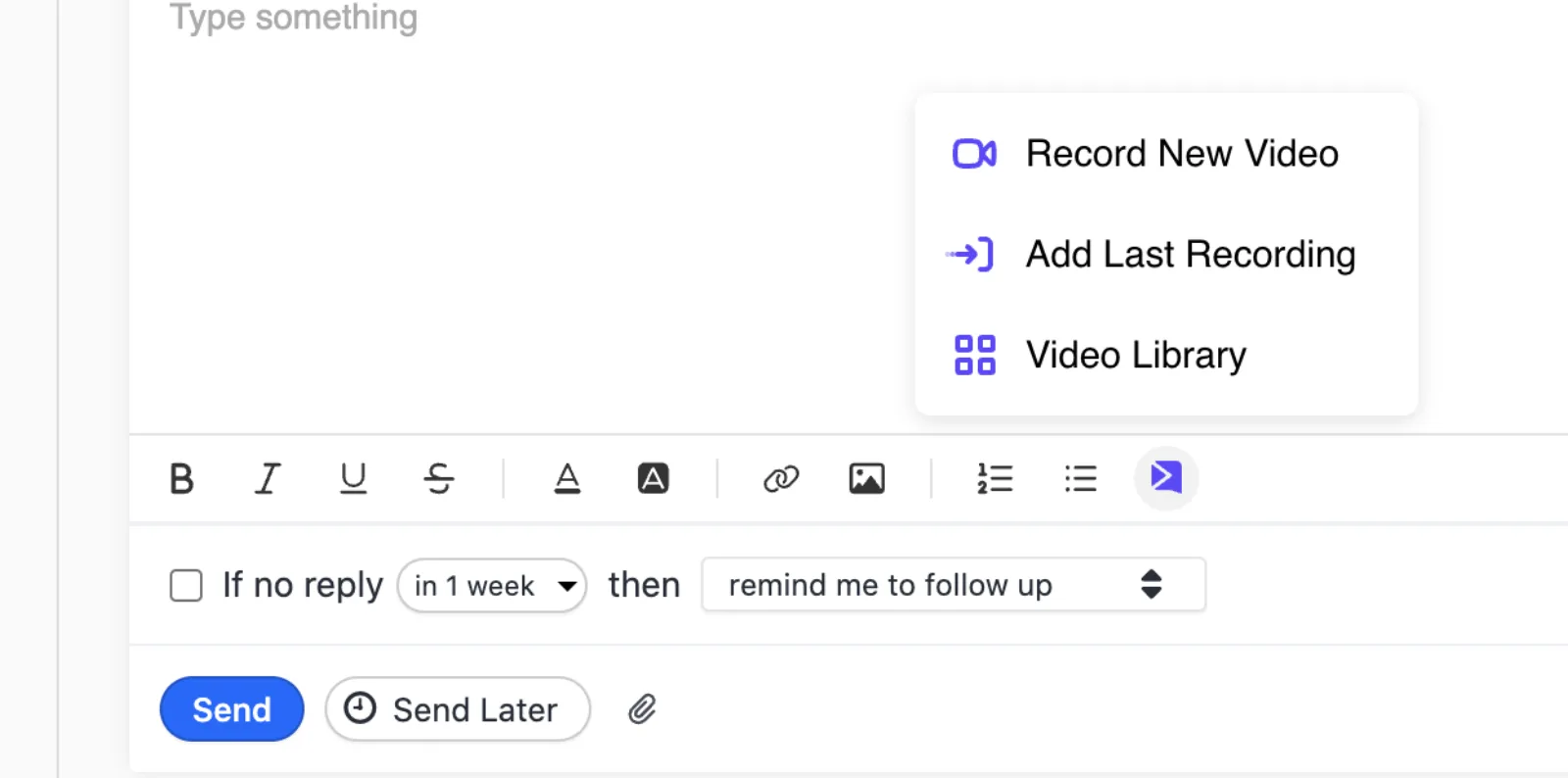
Record or pick a video
Click the icon and choose Record New Video to launch the recorder for your camera or screen, Add Last Recording, or Video Library.
- 3
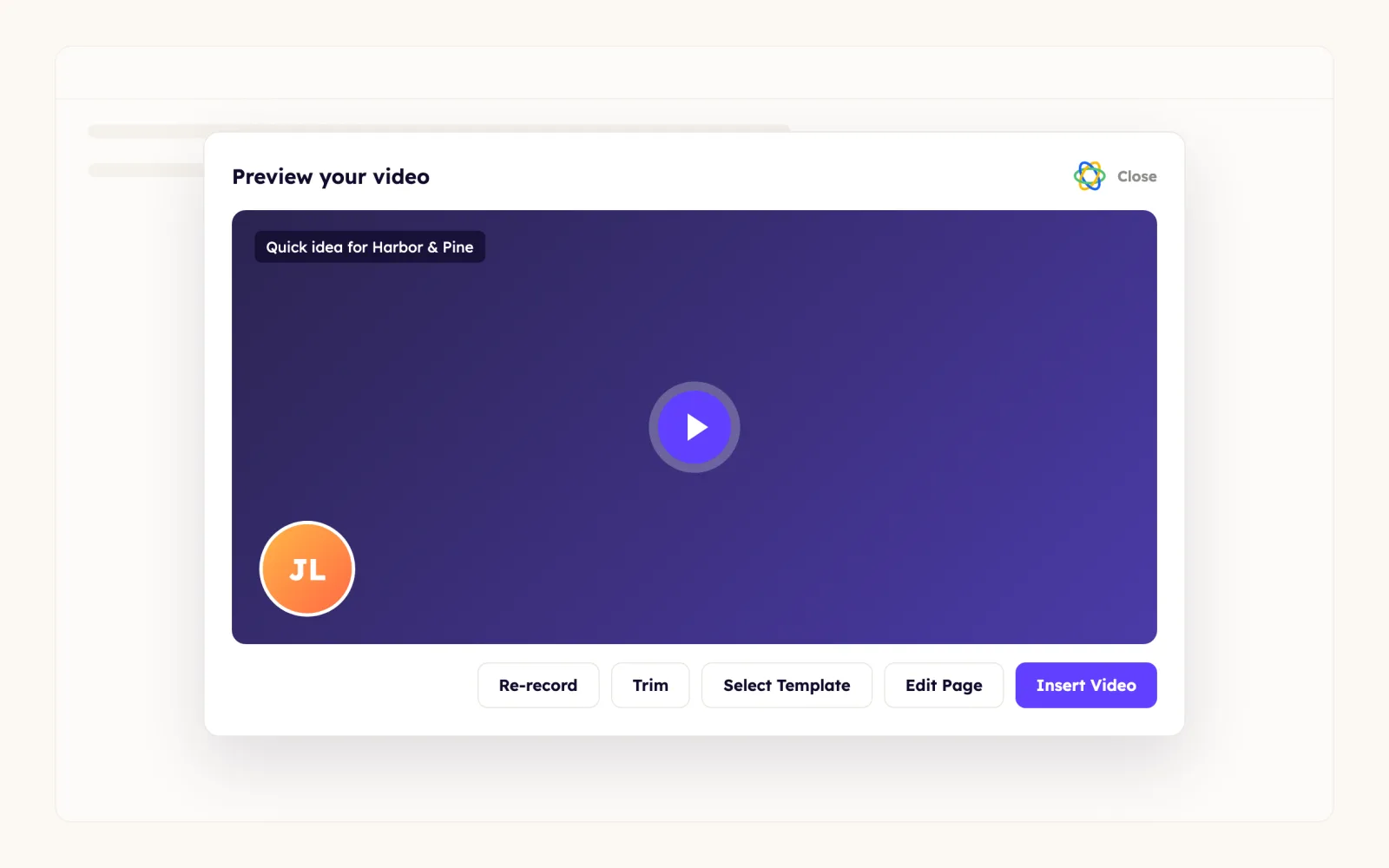
Preview and polish
Preview the recording above Close and re-record as often as you like. Use Select Template to add text and a call-to-action, Add Video to attach a custom intro, Trim, or Edit page/thumbnail.
- 4
Insert it into your email
Click Insert Video and the clickable thumbnail drops into your Close email. Resize it and edit the text around it before sending.
What teams do with Sendspark and Close
Build a reusable personalized video template in Close
Customize the video's header, message and call-to-action, enable Close in Share Video (Edit/Add, search Close, Save Changes) and copy the Close code. Paste it into Settings, Template, New Template in Close, then send it to contacts so merge tags fill in for each one.
Read the guideSend dynamic videos from a Close workflow
Copy the Close snippet from Share Campaign, paste it into a new email template with real text around it, and attach the template to a workflow email. A manual trigger works; enroll the contacts you generated videos for and each gets their own video, matched by email.
Read the guideReply with a video without leaving the inbox
Use the Sendspark icon in any Close conversation to record, add a saved template's call-to-action and insert the video in one pass.
Read the guideWhat Close data personalizes each video
- Video banner: use any merge tag Close supports, and always leave a space after each merge tag so text doesn't run together.
- Dynamic snippet: it shows as a placeholder (sometimes a broken image) in the Close template editor and becomes the right video for each contact, matched by email address.
- Add real text beside the video instead of sending a bare thumbnail; it helps deliverability.
- Templates from Sendspark add text and a call-to-action to the video page without typing.
Where you see who watched from Close
Sendspark analytics show who viewed, how much they watched, CTA clicks and likes for every video you send from Close, and Team Insights is on every plan.
Explore Video AnalyticsSendspark and Close: frequently asked questions
Does Sendspark integrate with Close CRM?
Yes. With the Chrome extension, a Sendspark icon appears in the Close composer so you can record and insert videos, and you can paste Sendspark's Close snippet into email templates and workflows for personalized and dynamic videos.
Why don't I see the Sendspark icon in Close?
The icon needs the Sendspark Chrome extension and a Chrome browser. Install the extension and reopen the conversation.
Why does my Close template show a broken image?
There's nothing to fill the dynamic placeholder in the editor. It renders as each contact's video when the email is sent; send yourself a test first.
Where do I see who watched my video?
In Sendspark's video analytics, which show viewers, watch time, CTA clicks and likes.
Updated
 PipedriveCRM tracking, share snippet and calendar embedExplore Pipedrive
 OutreachInstant integration, share snippet, Agentic Workflows connection and calendar embedExplore Outreach
 HubSpotInstant integration, HubSpot app (workflow actions and CRM tracking), share snippet, Agentic Workflows connection and calendar embedExplore HubSpot
Make your next outreach personal.
Record one video and let Sendspark do the rest.