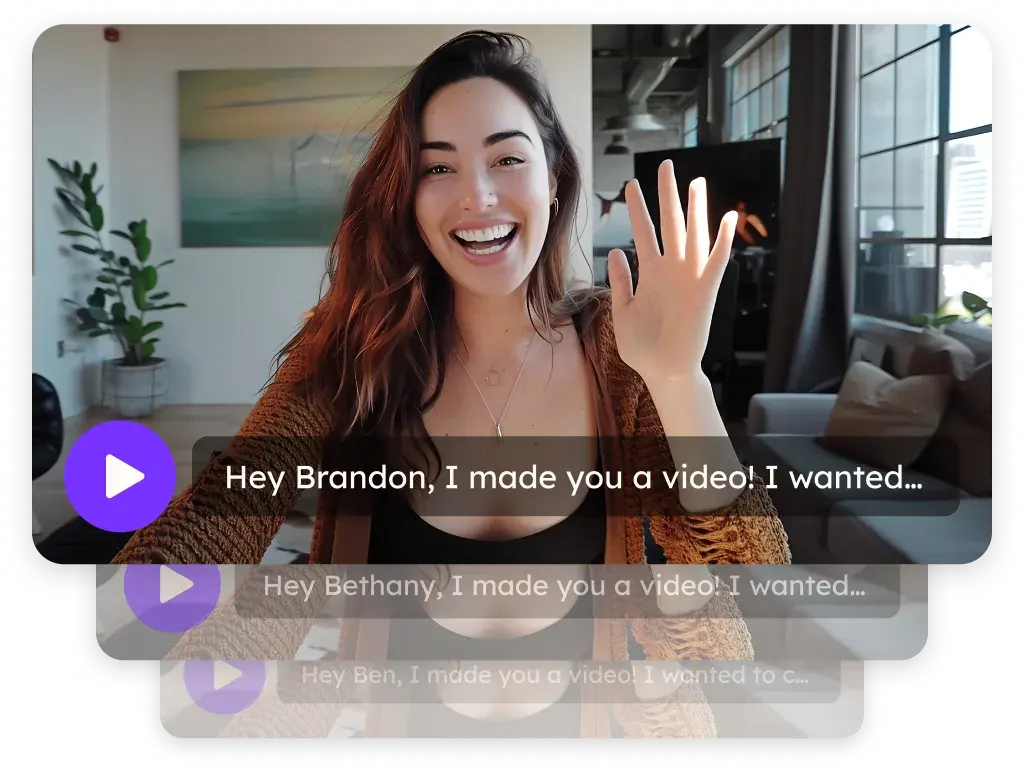
Sendspark Zendesk integration for video ticket replies
Sendspark's Zendesk integration is an instant integration: with the Sendspark Chrome extension installed, a Sendspark icon appears in the Zendesk ticket composer, so you can record, trim and insert a video reply without leaving the ticket. For answers you send often, paste your video into a Zendesk macro with personalization tokens. Sendspark is an AI personalized video platform for B2B sales and marketing teams.
 SOC 2 Type II
- Read reviews on G2


Sendspark and Zendesk at a glance
- Integration type
- Instant integration (Chrome extension) and share snippet for macros
- How data moves
- You insert a recorded video into a Zendesk reply, or paste Sendspark's Zendesk share snippet into a macro. Nothing is written back to Zendesk; views are tracked in Sendspark.
- What you need
- The Sendspark Chrome extension in a Chrome browser; Zendesk admin access to create macros
- Setup guides
- On Zendesk's side
- About Zendesk
Tickets bounce back because written answers get misread
A step-by-step reply that made sense to the agent confuses the customer, so the ticket reopens and the queue grows. Showing the fix on screen would close it, but leaving Zendesk to record and upload takes longer than typing another reply.
How to use Sendspark with Zendesk
- 1
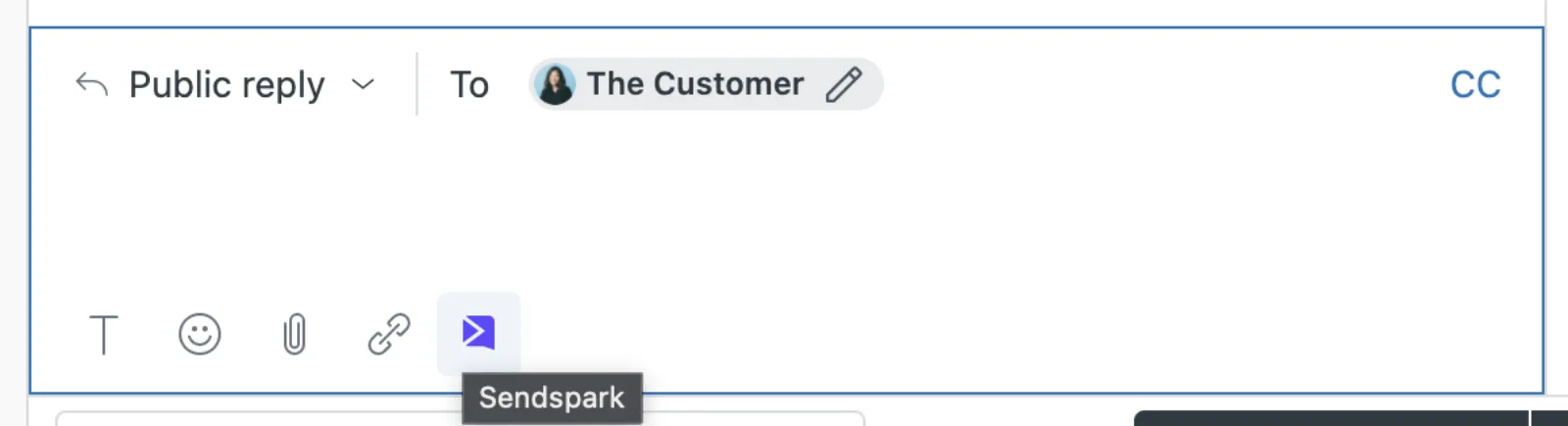
Open a ticket reply
With the Sendspark Chrome extension installed, open a new or existing ticket. The Sendspark logo appears in the compose window next to Zendesk's own options.
- 2
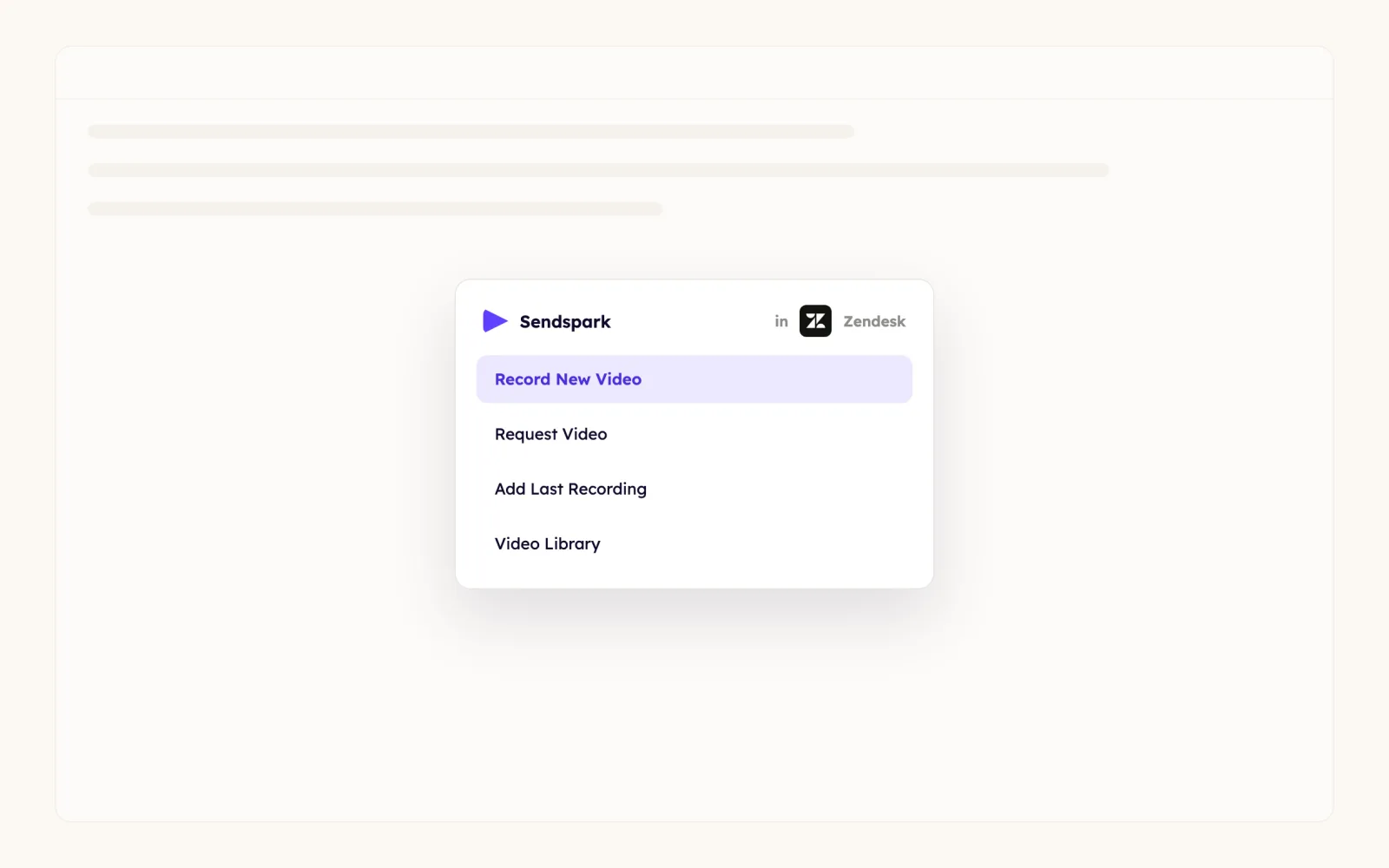
Click Record New Video
Record yourself or your screen, or choose Request Video, Add Last Recording or Video Library instead.
- 3
Edit without leaving Zendesk
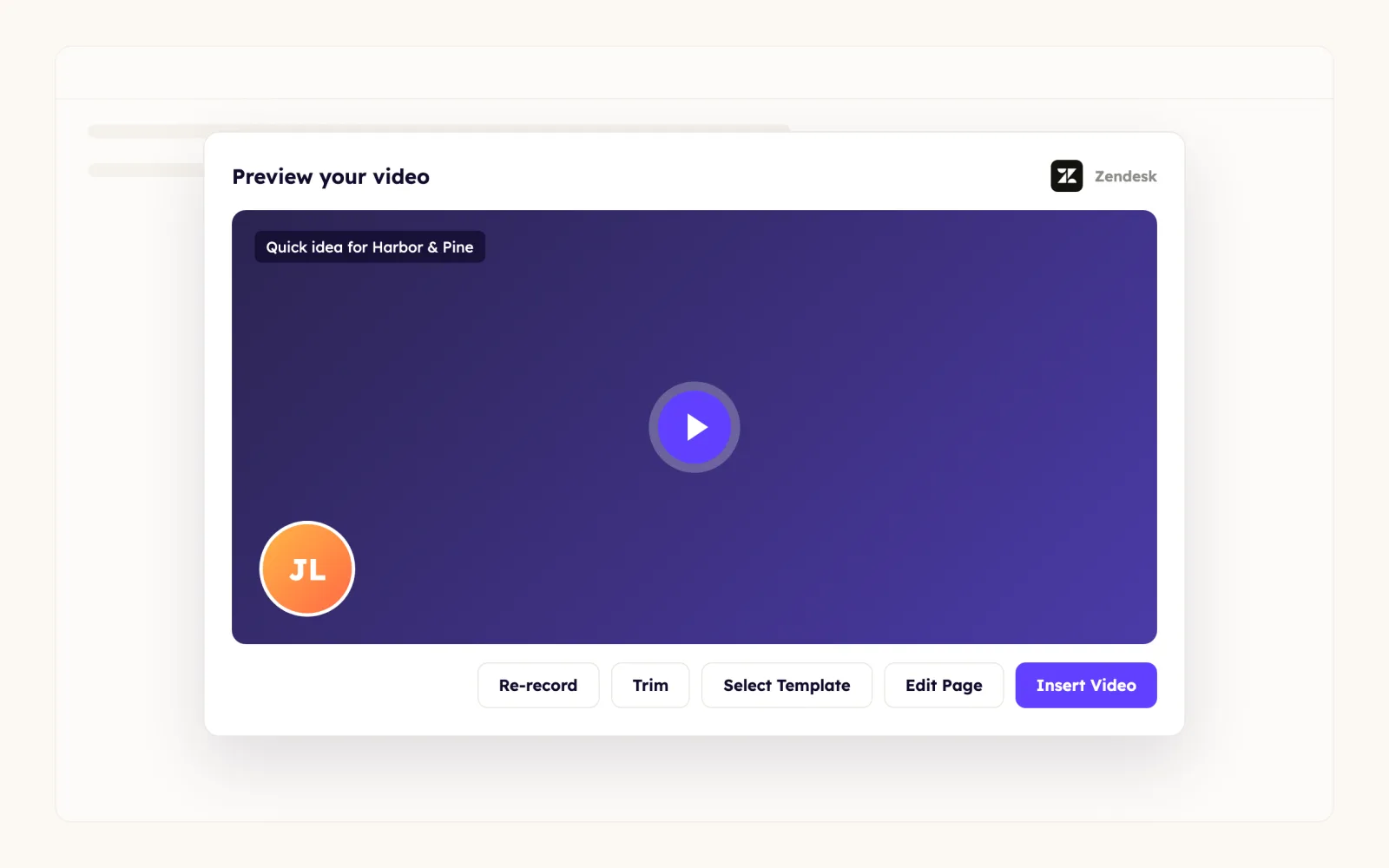
In the preview, click Select Template to add page text, call-to-action buttons and an embedded calendar, the video + button to stitch on another video, the scissors to trim, or the pencil to open it in Sendspark.
- 4
Insert and send
Click Insert Video to place the video in your reply, then submit the ticket as usual.
What teams do with Sendspark and Zendesk
One macro that sends a personalized video on every ticket
Add firstname, company name and job title variables to a Sendspark video, click Share Video and choose Zendesk under Share with Personalization. In Zendesk go to Admin > Workspaces > Macros > Add macro, pick the comment/description action and paste the snippet into the rich content area; applying the macro fills in each requester's details.
Read the guideA personal note in front of your standard walkthrough
Record a short hello for the customer, then use the video + button in the preview to stitch your pre-recorded demo onto it, all from the ticket.
Read the guideAsk the customer to record what they see
Paste a Sendspark video request link into the reply. The customer records their screen or camera without a Sendspark account, and the video lands in your Request Library.
Read the guideWhat Zendesk data personalizes each video
- Zendesk snippets support the firstname, companyname and job title variables, written like {{firstname | there}} and {{companyname | your company}}.
- When a requester's details are missing, the fallback after the pipe is shown instead.
- Personalization tokens fill in only when the snippet is sent through a Zendesk macro.
- If Zendesk isn't in your share options, add it by editing the shortcuts on the share modal.
- Templates add a title, message, call-to-action and embedded calendar to the video page in one click.
Where you see who watched from Zendesk
Sendspark's video analytics show who watched your video, how much they watched, CTA clicks and likes. Nothing is written back to Zendesk.
Explore Video AnalyticsSendspark and Zendesk: frequently asked questions
Does Sendspark integrate with Zendesk?
Yes. With the Sendspark Chrome extension, a Sendspark icon appears in the Zendesk compose window, so you can record, edit and insert videos into ticket replies. You can also paste a personalized video snippet into Zendesk macros.
How do I send the same video to many customers but keep it personal?
Use Sendspark's Zendesk share snippet with dynamic variables and save it in a Zendesk macro. Each time you apply it, the requester's name and company fill in.
What happens if a customer's name isn't in Zendesk?
Sendspark shows the fallback you set, such as "there" in {{firstname | there}}, so the message still reads naturally.
Why don't I see Zendesk in Sendspark's share options?
Edit the shortcuts on the share modal to add Zendesk under Share with Personalization.
Updated



Make your next outreach personal.
Record one video and let Sendspark do the rest.